What is Trello? The Ultimate Guide to the Web-Based Kanban-Style Project Management Tool
In the realm of project management, finding the right tool to streamline workflows and enhance collaboration is crucial for success. Trello is a popular web-based application that utilizes a Kanban-style list-making approach to help teams organize tasks and projects visually. Originally developed by Fog Creek Software in 2011, Trello was spun out to form a separate company in 2014 and was later acquired by Atlassian in January 2017. In this comprehensive guide, we will explore Trello’s features, benefits, and best practices, helping you understand how to leverage this powerful tool for your projects.
Understanding Trello: The Basics
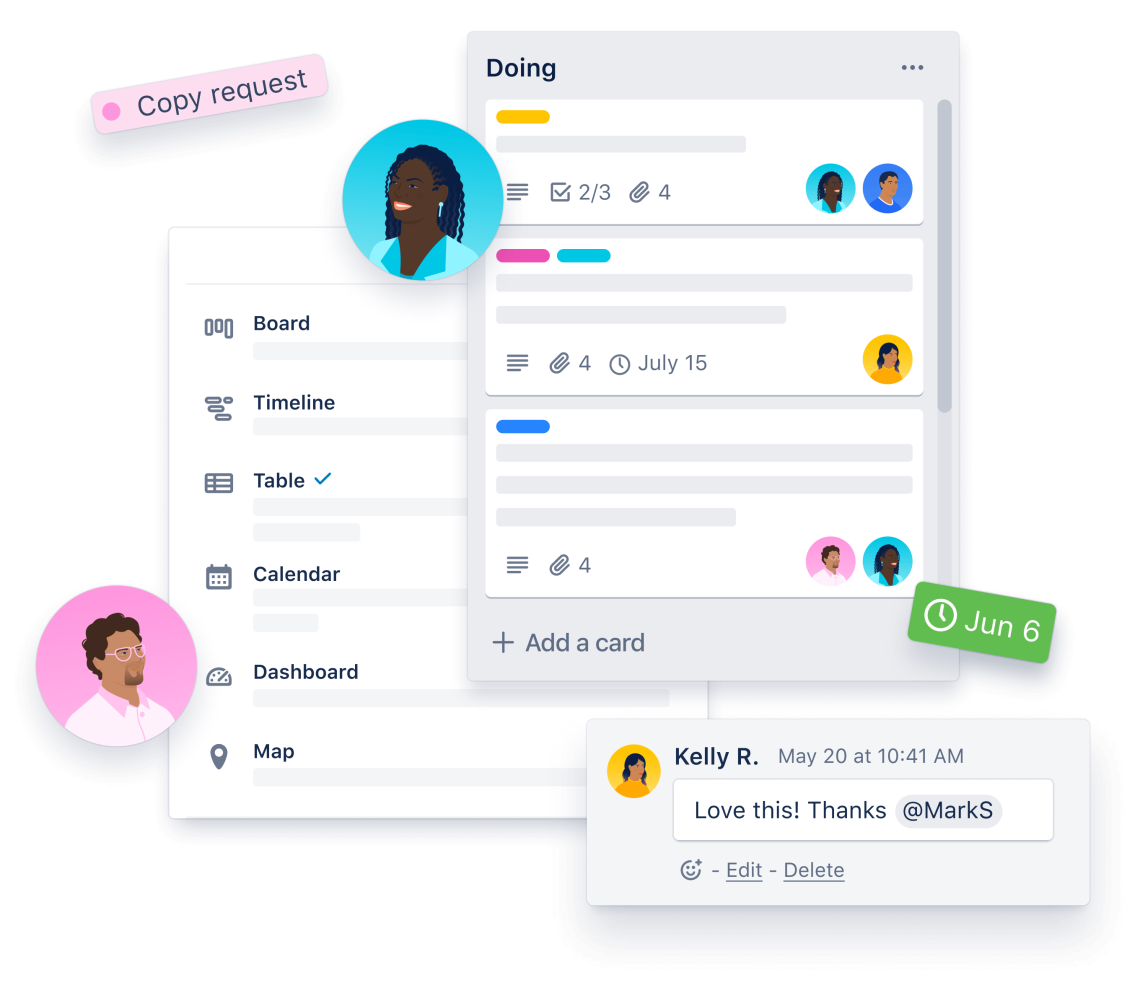
Trello is designed to simplify project management by providing a visual interface that allows users to create boards, lists, and cards. Each board represents a project, while lists can be used to represent different stages of the project or categories of tasks. Cards are the individual tasks or items that can be moved between lists as they progress through various stages of completion. This intuitive design makes Trello accessible to users of all skill levels, from individuals managing personal tasks to large teams coordinating complex projects.
Key Features of Trello
Trello offers a variety of features that make it a versatile project management tool:
Boards, Lists, and Cards: The core structure of Trello consists of boards, lists, and cards. Users can create multiple boards for different projects, and within each board, they can create lists to represent stages or categories. Cards can be added to lists to represent tasks, and users can move these cards between lists as they progress.
Customizable Workflows: Trello allows users to customize their workflows by creating lists that reflect their specific processes. Whether you’re using a simple to-do list or a more complex workflow, Trello can adapt to your needs.
Labels and Tags: Users can add labels and tags to cards to categorize tasks and make them easier to identify. This feature helps teams prioritize tasks and quickly locate specific items.
Due Dates and Reminders: Trello enables users to set due dates for tasks and receive reminders as deadlines approach. This functionality helps teams stay on track and ensures that important tasks are completed on time.
Checklists: Within each card, users can create checklists to break tasks down into smaller, manageable steps. This feature is particularly useful for complex tasks that require multiple actions to complete.
Attachments: Trello allows users to attach files, images, and links directly to cards. This capability ensures that all relevant information is easily accessible in one place.
Collaboration Tools: Trello includes various collaboration features, such as comments, mentions, and notifications. Team members can communicate directly within cards, making it easy to share updates and feedback.
Integrations: Trello integrates with a wide range of third-party applications, including Slack, Google Drive, and Dropbox. These integrations enhance collaboration and streamline workflows by connecting Trello with the tools teams already use.
Why Use Trello for Your Projects?
Visual Organization
One of the primary advantages of Trello is its visual organization. The Kanban-style layout allows users to see the status of tasks at a glance, making it easy to understand project progress and identify bottlenecks. This visual approach can enhance team collaboration and communication, as everyone can quickly see what needs to be done.
Flexibility and Customization
Trello’s customizable workflows make it suitable for a wide range of use cases. Whether you’re managing a software development project, planning a marketing campaign, or organizing personal tasks, Trello can adapt to your specific needs. Users can create boards that reflect their unique processes, ensuring that the tool aligns with their workflow.
Enhanced Collaboration
Trello’s collaboration features foster teamwork and communication. Team members can comment on cards, mention each other, and receive notifications about updates. This level of transparency helps build trust within the team and ensures that everyone is informed about project developments.
Increased Productivity
By providing a clear overview of tasks and deadlines, Trello helps teams stay organized and focused. The ability to set due dates, create checklists, and track progress can significantly enhance productivity, allowing teams to complete projects more efficiently.
Accessibility
As a web-based application, Trello is accessible from any device with an internet connection. This accessibility ensures that team members can collaborate and manage tasks from anywhere, making it an ideal solution for remote teams.
How to Get Started with Trello
Getting started with Trello is simple and straightforward. Here’s a step-by-step guide to help you begin your project management journey:
Step 1: Sign Up for Trello
Begin by signing up for a Trello account. The platform offers a free plan, allowing you to explore its features before committing to a paid subscription.
Step 2: Create Your First Board
Once you’ve created an account, set up your first board. Give your board a name that reflects the project you’re working on, and choose a background that suits your style.
Step 3: Add Lists
Within your board, create lists to represent different stages of your project or categories of tasks. For example, you might create lists for “To Do,” “In Progress,” and “Completed.”
Step 4: Create Cards
Start adding cards to your lists to represent individual tasks. Include relevant details, such as due dates, checklists, and attachments, to ensure that all necessary information is readily available.
Step 5: Collaborate with Your Team
Invite team members to your board and encourage them to collaborate on tasks. Use comments and mentions to facilitate communication and keep everyone informed about project developments.
Step 6: Monitor Progress
As your team works on tasks, monitor progress by moving cards between lists. This visual representation of task status will help you identify bottlenecks and ensure that the project stays on track.
Best Practices for Using Trello
To maximize the effectiveness of Trello, consider the following best practices:
Define Clear Goals
Before starting a project, define clear goals and objectives. This clarity will help your team stay focused and aligned throughout the project.
Prioritize Tasks
Use Trello’s labeling and tagging features to prioritize tasks effectively. Regularly review and adjust priorities based on changing circumstances and feedback.
Foster Open Communication
Encourage open communication among team members. Use Trello’s commenting and collaboration features to facilitate discussions and share updates. This transparency will help build trust and improve team dynamics.
Regularly Review Progress
Take advantage of Trello’s visual layout to regularly review your team’s progress. Use this information to identify areas for improvement and implement changes to enhance your processes.
Stay Agile
In the fast-paced world of project management, agility is crucial. Use Trello’s customizable workflows and project management features to adapt to changing requirements and market conditions.
Case Studies: Successful Implementations of Trello
Case Study 1: The New York Times
The New York Times adopted Trello to manage its editorial workflow. By using Trello’s boards and lists, the editorial team was able to streamline the process of assigning and tracking articles. This implementation led to improved communication and collaboration among team members, resulting in a more efficient editorial process.
Case Study 2: National Geographic
National Geographic utilized Trello to coordinate its marketing campaigns. The marketing team created boards for each campaign, allowing them to track tasks, deadlines, and progress visually. This approach enhanced collaboration and ensured that all team members were aligned on campaign goals.
Frequently Asked Questions
Q: Is Trello free to use? A: Trello offers a free plan, allowing you to explore its features before committing to a paid subscription.
Q: Do I need technical skills to use Trello? A: No, Trello is designed for users of all skill levels. Its intuitive interface makes it easy to navigate and use.
Q: Can I integrate Trello with other tools? A: Yes, Trello integrates seamlessly with popular tools such as Slack, Google Drive, and Dropbox, allowing you to connect your workflows and enhance collaboration.
Q: Are there customizable workflows in Trello? A: Absolutely! Trello allows you to create custom lists, labels, and templates to match your team’s unique processes.
Looking Ahead: The Future of Project Management with Trello
As the demand for effective project management tools continues to grow, Trello is at the forefront of this trend, providing teams with the tools they need to streamline their workflows and enhance collaboration. By empowering teams to manage tasks visually and communicate effectively, Trello helps businesses achieve their goals and drive innovation.